Worksheet Crafter User Manual
The app  Worksheet Go! is the interactive addition to Worksheet Crafter.
Let your students solve your digital worksheets on a tablet or in a web browser.
Present your boardwork on digital whiteboards.
The digital worksheets and boardwork are created as usual with Worksheet Crafter. When creating a new worksheet just select Boardwork or Digital Worksheet (e.g. via the File menu entry New) or changing the type later in the Page Settings (this usually requires reordering the items on the pages).
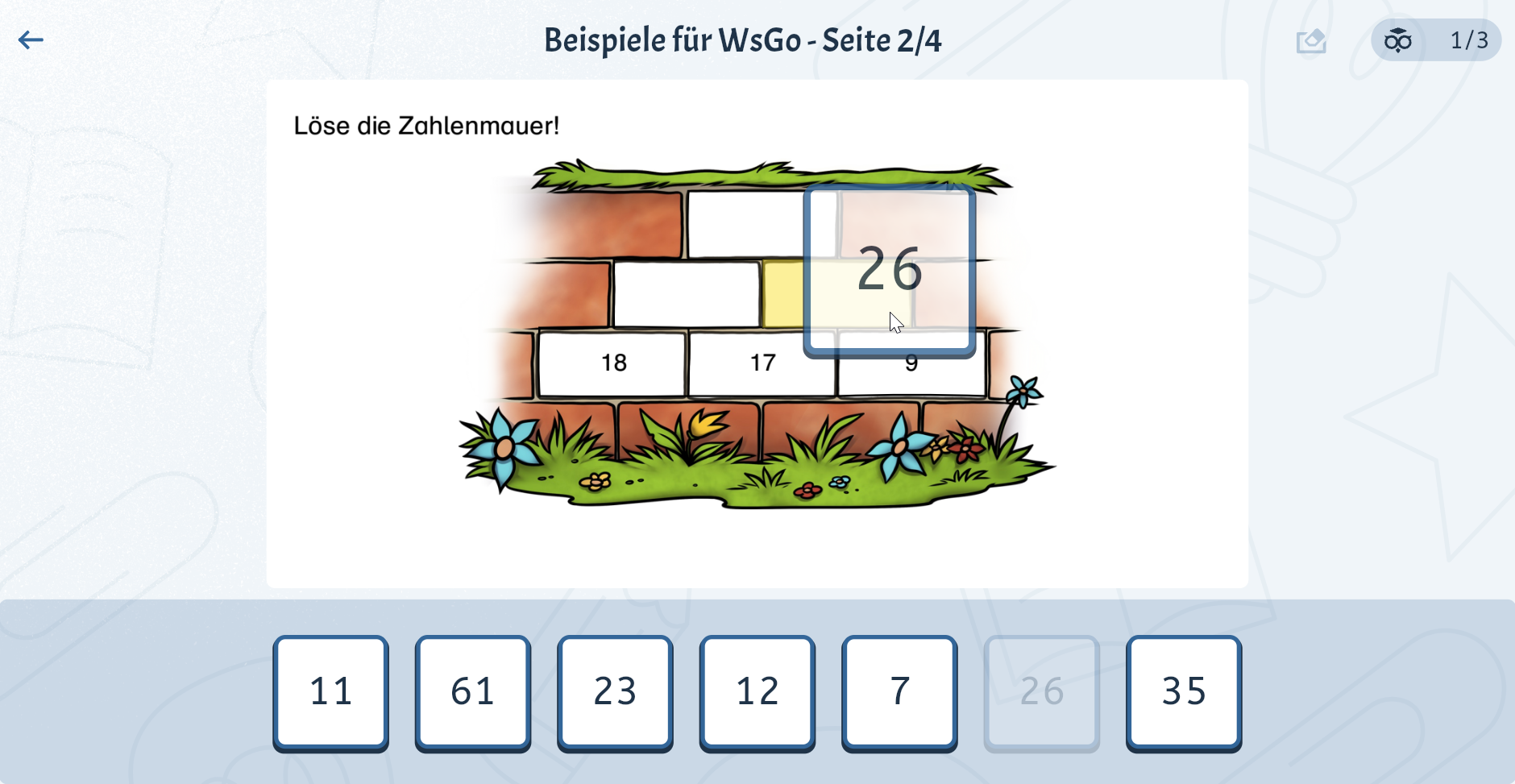
Digital Worksheets
Compared to paper, Worksheet Go! offers many additional options for solving digital worksheets:
•Assistance Features: Adjust Worksheet Go! to the needs and capabilities of your students. I.e. you can take physical limitations or learning strenghts and limitations of your students into consideration.
•Self Control: Worksheet Go! asks your students to check their work before showing them if an exercise was correctly solved. You decide how many solution attempts they have.
•Text-To-Speech: Use the Audio Playback Item in Worksheet Crafter to add text-to-speech to your interactive worksheet, e.g. for work instructions or language exercises. The students can also let the app read solutions to them.
•It is a lot of fun: Solving exercises is intuitive with drag and drop. It turns out, that this is a lot of fun for the kids and at the same time does not distract them from the content.
•Simple Worksheet Distribution: Just share a short download code or QR code with your students. This way they can also use the app at home on their private tablets or computers to solve your worksheets.
Learn more about digital worksheets
Boardwork
When creating boardwork an interaction menu allows you to make the items on the board...
•...movable.
•...invisible at start.
•...change their visibility on every tap.
You can combine those interactions.
For solvable exercise items the solutions are automatically hidden on the board. You can show them via tap.
Also you can let Worksheet Crafter generate multiple exercise variants for an item.
In Worksheet Go! the toolbar provides the most important actions for navigating on the board.


Worksheet Go! in Browser
Worksheet Go! runs in your web browser. Just open https://wsgo.app or start the worksheet direclty from your Owl Mail Portfolio.
Worksheet Go! App for Android
Worksheet Go! runs on Android devices (no mobile phones) with Android 6, Marshmallow, or newer.
Check out Google Play Store to find out if your device is supported.
(Amazon Fire tablets are currently not supported.)
Open the Play Store and search for Worksheet Go!.
Click on Install. After a short while Worksheet Go! should be available on your device.
Worksheet Go! App for iOS
Worksheet Go! runs on an iPad with iOS 12 or newer.
Open the App Store and search for Worksheet Go!.
Click on Install. After a short while Worksheet Go! should be available on your iPad.
Ho to get your Content to Worksheet Go!

With the Preview button in the upper right side bar you can open an interactive preview of the worksheet in your web browser. This allows you to quickly test the worksheet without having to first transfer it to the app.
The button is only available for non-empty boardwork or digital worksheets.
Note: The preview is not supported in Safari web browser. If you have only Safari installed, please install an additional browser like Firefox to use the preview feature.
After creating your worksheet, click the button Put in Owl Mail Portfolio in the upper right sidebar:
Learn more about the Owl Mail Portfolio.
In the dialog enter some additional information about your worksheet:
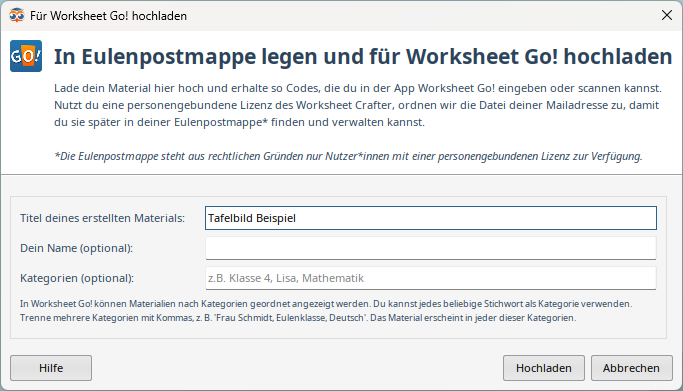
For digital worksheets you can also edit the assistance settings for the worksheet.
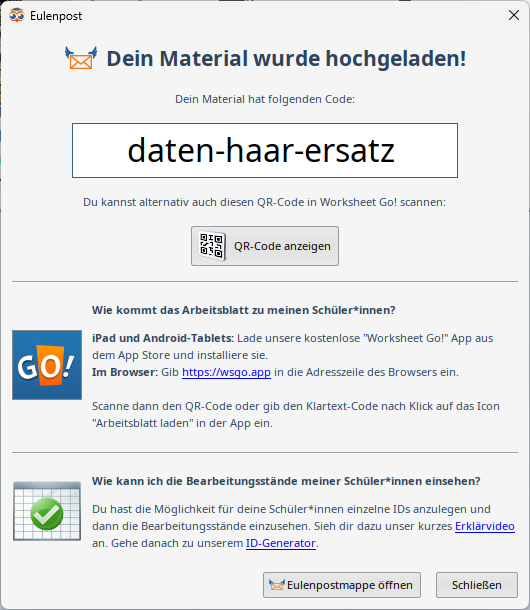
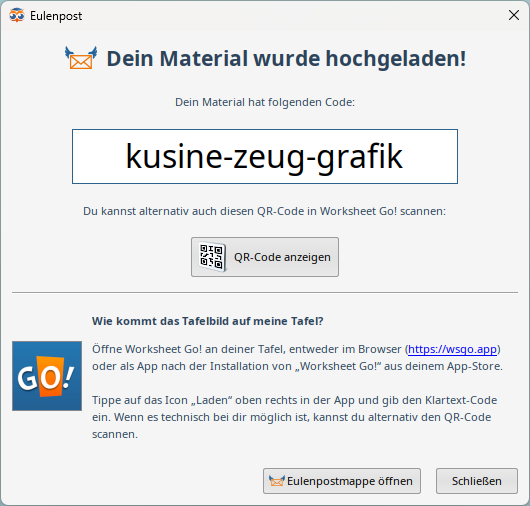
After clicking Upload Worksheet Crafter will provide a download code and QR code:
 Digital Worksheet |
 Boardwork |
For digital worksheets the dialog also shows information about the Feedback Channel and a link to directly open the Student-ID generator in your browser.
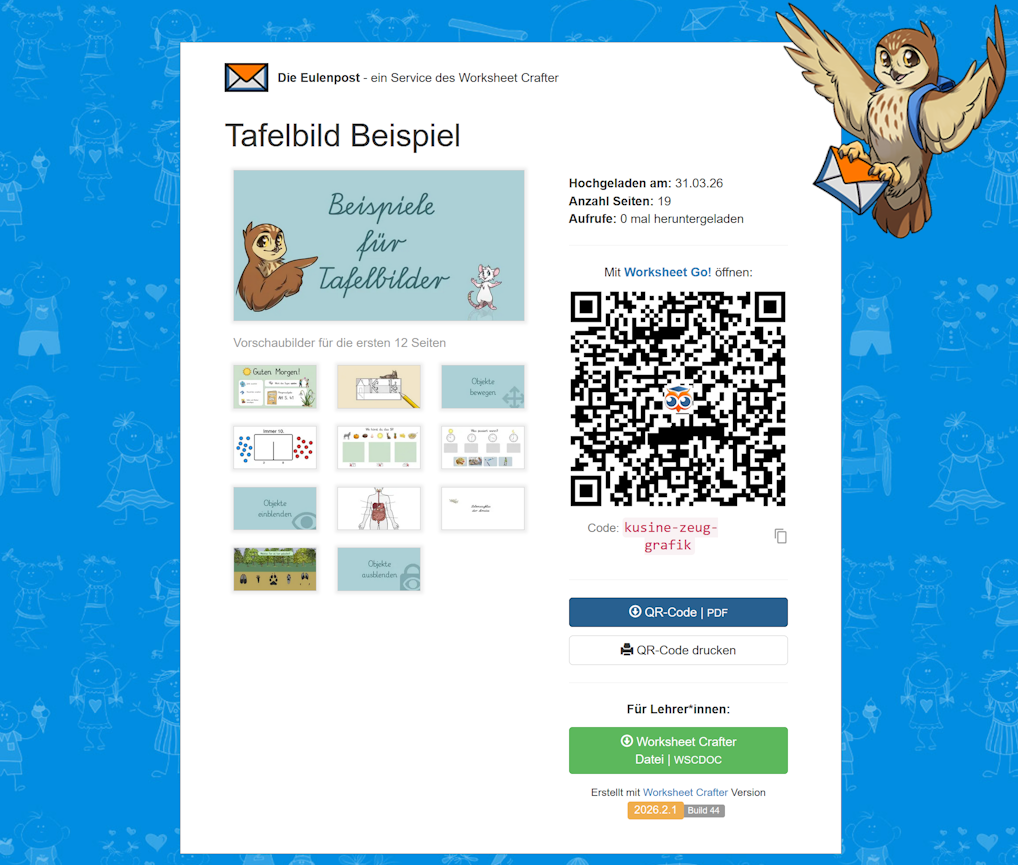
With a click on Show QR code the owl mail page for your content is opened where you can directly scan the QR code from screen, save it as PDF or print it.
Check out the section above on how to get Worksheet Go!.
There are several ways to add your content to Worksheet Go!. After adding, you can open it in the app by tapping on it in the overview.
Owl Mail Portfolio
In the Owl Mail Portfolio you find an overview of your content.
When you hover over a boardwork or digital worksheet the button open with Worksheet Go! is shown. Open the worksheet with Worksheet Go!.
Download Code or QR Code
Open Worksheet Go!. Tap in the top right menu on the download button (icon with a downwards arrow).
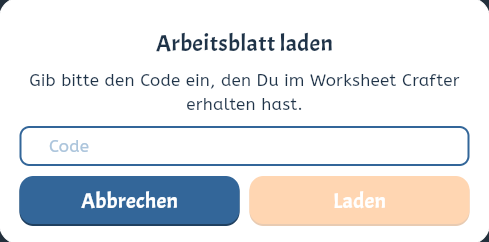
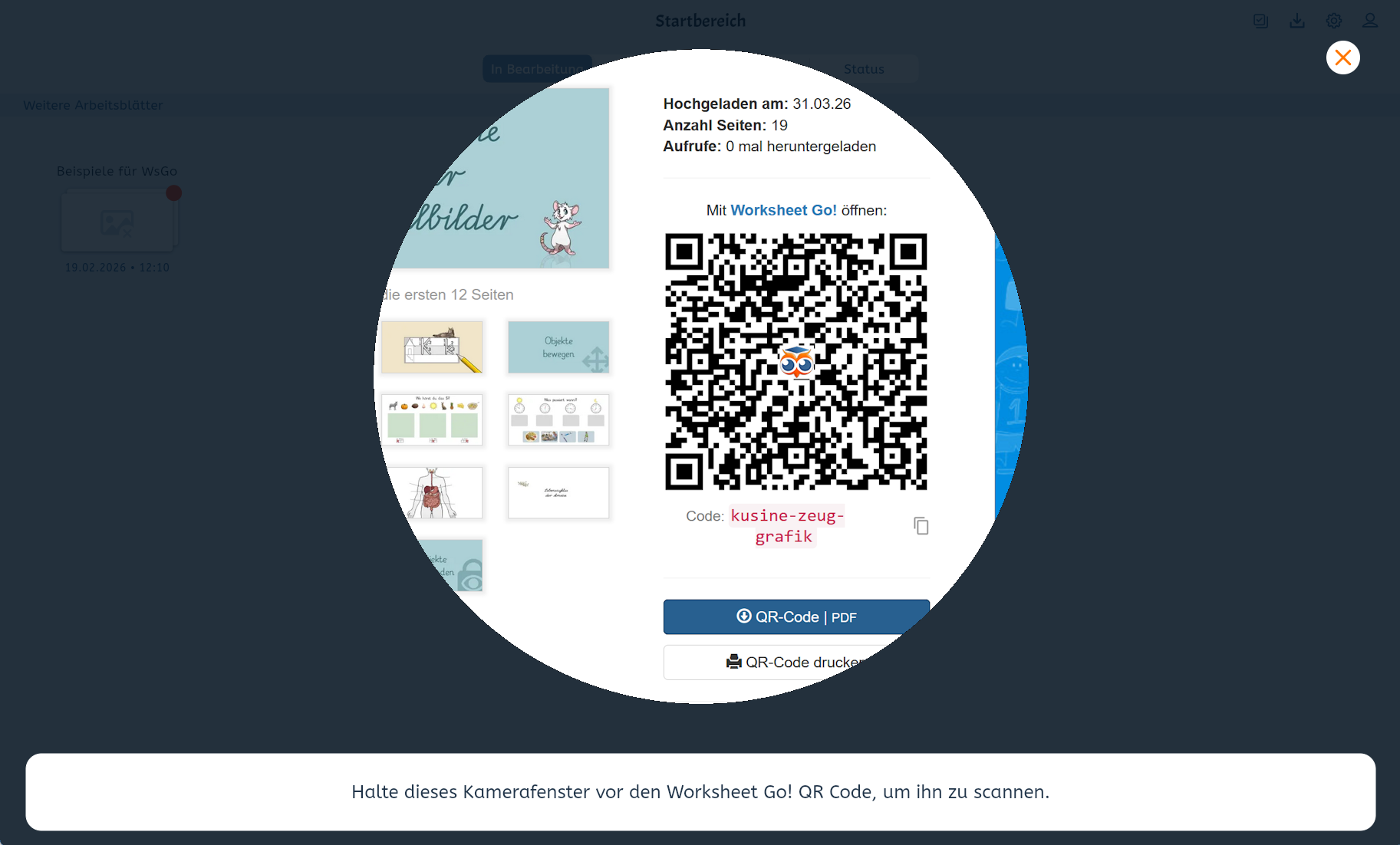
In the menu you can select if you want to scan a QR code or manually enter a download code. You received both on uploading your content in Worksheet Crafter.
Entering the download code:
Scanning the QR code (requires a camera):
AirDrop (iOS only)
On iPads (but not Android tablets) you can share already loaded content between tablets via AirDrop. This does not require an internet connection and is ideal to distribute the content on your students devices.
AirDrop has to be enabled on both iPads.
The AirDrop button is located in the Worksheet Go! overview after you selected one or multiple worksheets and also in the page overview of a digital worksheet:

In the overview all content that you loaded with the app is shown.
You can order the content by date, state of editing, keywords or status.
The app menu is located in the upper right corner:

You can...
•...select multiple worksheets (see below).
•...load a worksheet.
•...open the settings (see below).
•...log in as a student (see Feedback Channel).
Tap a worksheet to open it. Depending on the typ it has another view:
New, unedited worksheets are highlighted with a red dot.
Select Multiple Worksheets
Tap the app menu icon Select multiple worksheets or long-press on a worksheet until the view changes.
You can now select or deselect worksheets by tapping.
The app menu now provides the following actions:

You can...
•...reset the selected worksheets to their initial state.
•...upload the results for the selected worksheets (see Feedback Channel).
•...remove the selected worksheets from Worksheet Go!.
•...close the multi-selection mode.
Settings
Worksheet Go! provides many settings to adjust the app to your students needs.
Have a look at the Assistance Settings chapter for digital worksheets.
You can set a PIN in the settings menu, if you want to prevent your students from changing them on their own.
Also the copyright page, where you find the app version, is located in the settings.