Worksheet Crafter User Manual
Usability is a great advantage of Worksheet Go! compared to paper worksheets, since the app can be adjusted to your students needs. I.e. you can take physical limitations or learning strenghts and limitations of your students into consideration and help your students with assistance features.
To activate assistance features, tap on the settings icon in the top right of the app overview. A window with quite a few settings opens, including the assistance section:
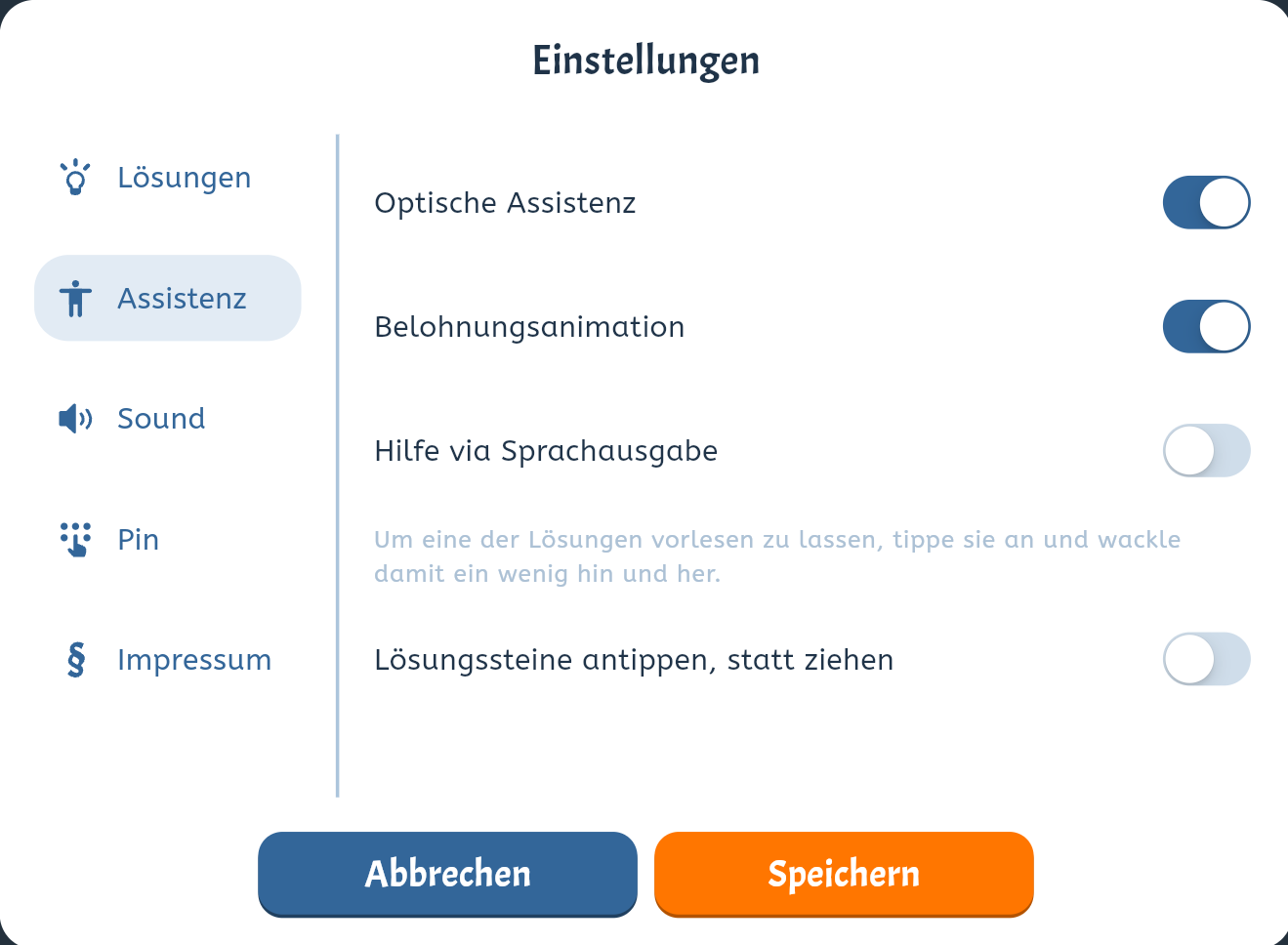
The following options are available:
•Optical Assistance: Assists drag & drop of solutions by increasing their size during drag and highlighting the target areas.
•Reward Animations: A correctly solved page is rewarded with fireworks.
•Help via Text-to-Speech: Assists your students via speech features, e.g. when they can release a solution or check their solutions. Also students can let the app read the solutions for them. Learn more
•Show solutions separately: The solution bar will hold single solutions. When deactivated, the app will stack identical solutions and indicate with a small number how often the solution is available.
•Sort Solutions: Sorts the solutions in ascending order to make it easier for your students.
•Allow Two Rows in Solution Bar: When there are many solutions this will distribute them onto two rows.
•Show Only Valid Solutions: When deactivated there may also be wrong solutions that should remain in the solution bar after solving the page.
•Number of Tries: How often your students may try to solve a page until it is marked as incorrectly solved.
•Call Teacher: You can encourage your students to ask the teacher for help before using up all their solution attempts.
You can set a PIN to protect the settings, so your students may not change them. Also resetting and deleting worksheets will be protected by the PIN.
Specify Assistance Features for a Worksheet
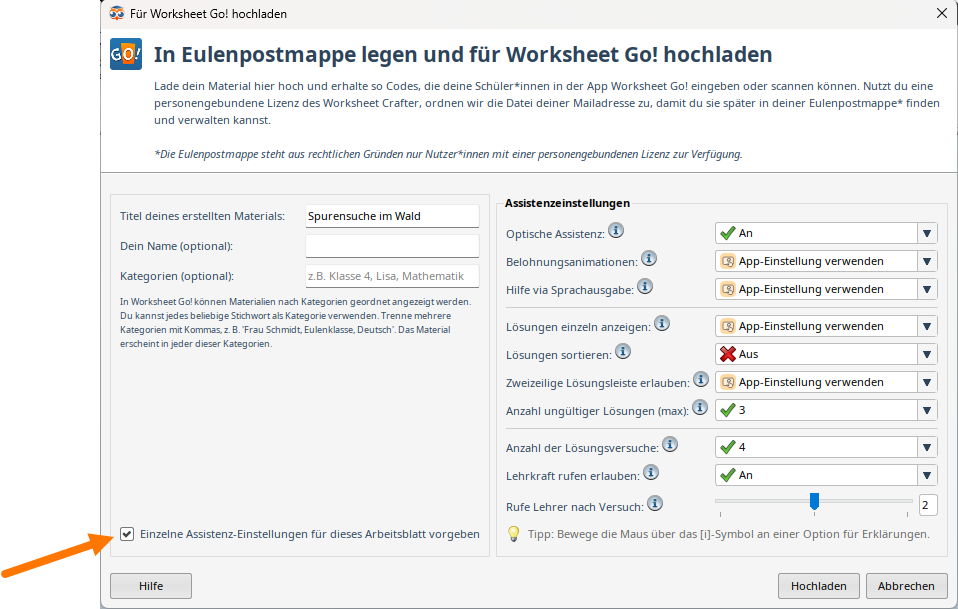
You can also set the assistance features for a specific worksheet. Choose for every setting individually if the app setting is used or a specific one for this worksheet.
This is done when uploading the worksheet:
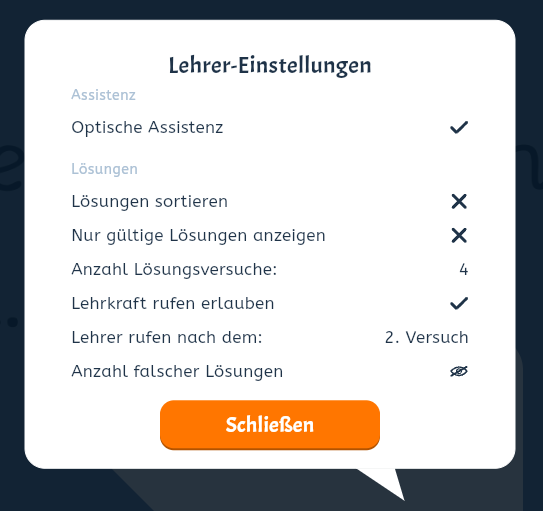
In Worksheet Go! your students can view your settings with the icon in the top right of the worksheet's page overview:

When solving a page the top right corner shows how many solution attempts they have: