Worksheet Crafter User Manual
After loading your Boardwork in Worksheet Go!, you can open it from the overview.
Toolbar
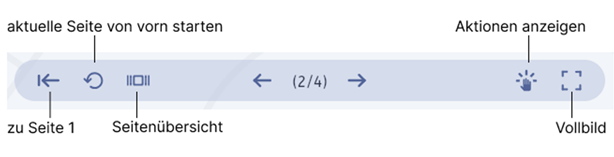
The toolbar below the page provides the most important actions:
•Back to the first page
•restart current page anew
•show page overview
•page up/down
•show actions
•fullscreen
To completely reset your boardwork go back to the overview.
Hold the thumbnail of your boardwork pressed until the menu changes. Now you can use the reset button in the top right to reset the boardwork (or multiple) to their original state:

Visibility of Items
If you set Visibility at start to invisible in Worksheet Crafter, you can show them by tapping on them.
If you set toggle visibility on every tap, tapping will do just that.
Moving Items
Items that you set as movable can be dragged across the page with your finger.
Exercise Items with Solutions
Solutions of exercise items are hidden at start. Tap them to show them.
|
|
|
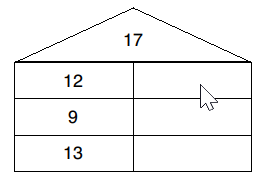

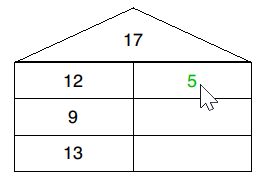
If you selected multiple variants for an item, it will show a dice symbol. Tap it to switch to the next variant: