Worksheet Crafter User Manual
Note: This is currently only supported in German language.
Use the Feedback Channel for Worksheet Go! to automatically receive your students' results via email.
How the Feedback Channel Works
Create a student ID for the child. This is a QR code that lets the child log in to Worksheet Go!.
As soon as a student has solved an interactive worksheet, the result is automatically sent to our server.
You will receive the collected results of your students daily via email.
Important: Logging in to Worksheet Go! is not required to use the app. It is only required for the Feedback Channel. For children who are not logged in to Worksheet Go!, no results are therefore transmitted to our server.
Signing Up for the Feedback Channel
Open this page in a web browser:
https://wsgo-id.worksheetcrafter.com/
There, first sign in with your email address.
You will receive an email that lets you log in. Click the button in the email to do so. If that doesn't work, copy the provided link and open it in your browser.
Creating Student IDs
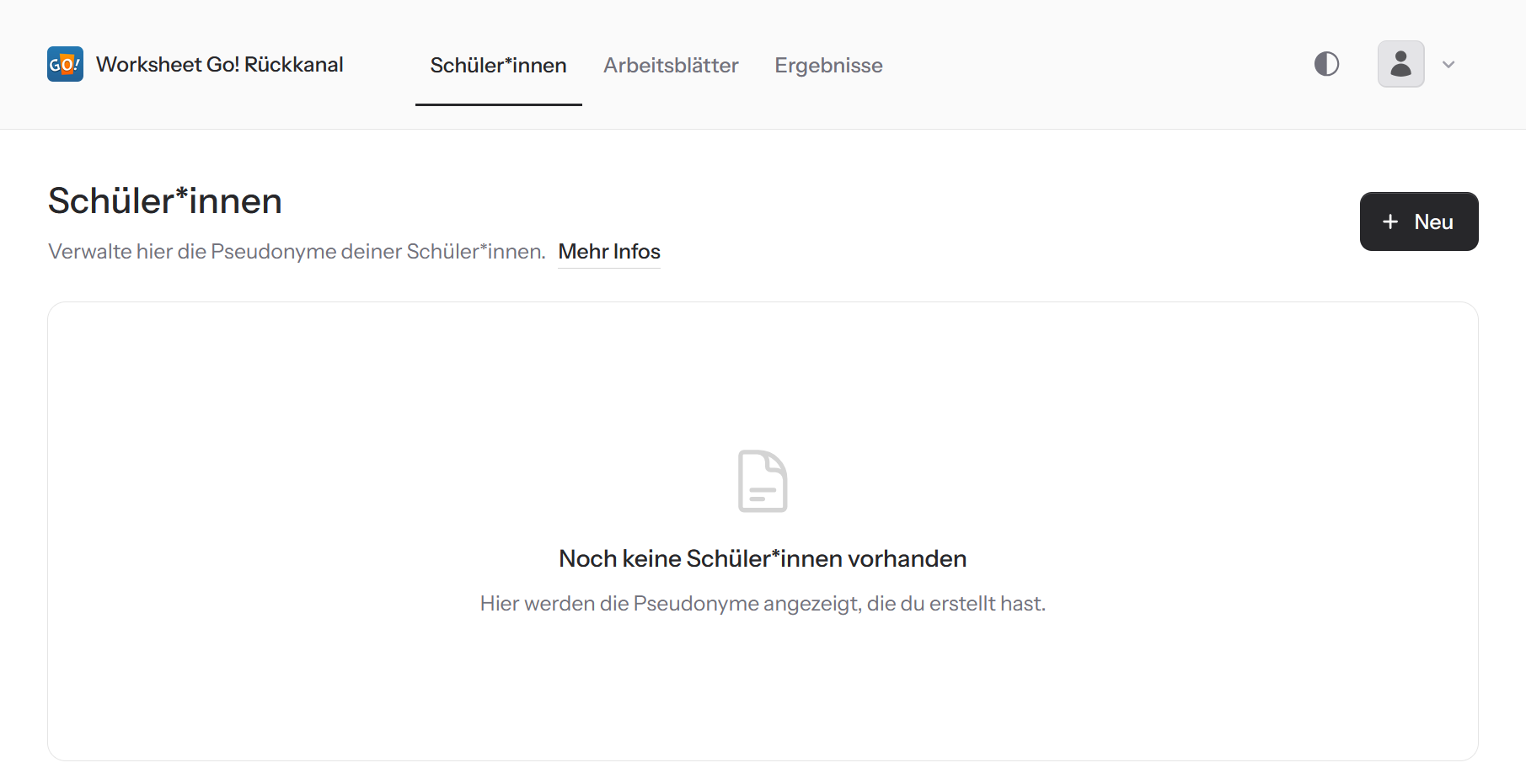
Under the tab Schüler*innen you'll find an overview of your student IDs and their results.
Click Neu to add more IDs.
In the dialog you can create one or more IDs by entering the desired pseudonyms.
Optionally you can also download the PDFs with the QR codes for your students right away (you can download them in the Schüler*innen tab any time).
You will receive a zip archive with all the created QR code documents. Give each child the document with their matching pseudonym.
How Your Students Log In to Worksheet Go!
In Worksheet Go! there is an icon shaped like a person in the top right corner:

Your students simply click this icon to log in to Worksheet Go!. There they then scan their personal QR code, which they received from you.
The children can tell whether the login was successful because they are now addressed by the username you chose. In addition, the login icon is marked with a green dot once the login was successful:

Sending Content to the Children
You send worksheets the way you always do. There is nothing special to consider here for the Feedback Channel. Your children, for example, still receive a worksheet QR code from you as before and use it to download the worksheet in the app.
The app then takes care of everything else, provided the child is logged in to Worksheet Go!. As soon as a child solves a worksheet, Worksheet Go! automatically sends the result to our server. No personal data is transmitted here. We identify your students exclusively by an encrypted ID, not by username. Only on our server do we then match this encrypted ID to the corresponding child. In the interest of transparency, Worksheet Go! does however let your students know whenever results have been sent to you:

Viewing the Children's Results
Our server collects the results for you and automatically sends you an email (at most twice a day). The email contains a PDF that lists all new results. If there are no new results, no email is sent.
Managing the Feedback Channel
The Feedback Channel website (https://wsgo-id.worksheetcrafter.com/) lets you manage your student IDs, view results, or delete your account.
Navigate using the Schüler*innen (students), Arbeitsblätter (worksheets) and Ergebnisse (results) tabs. In the menu in the top right, you can change the appearance (light/dark), go to the Einstellungen (settings), or log out.
Schüler*innen (students) Tab
Manage your student IDs.
Use the Neu button to add student IDs (see above).
The IDs are listed in the table under their pseudonyms. Click the column headers to change the sort order.
Click the checkboxes in front of the entries to select one or more pseudonyms. A menu appears in which you can delete the selected IDs or download the PDFs with the invitations for them.
In the Einladung (invitation) column you can click to show the QR code for the student login or download the invitation as a PDF.
Arbeitsblätter (worksheets) Tab
Shows the worksheets that have been worked on.
Click the column headers to change the sort order.
Click a worksheet to open a detail view.
You can open the worksheet in Owl Mail and see your students' results for this worksheet.
Ergebnisse (results) Tab
Here you'll find an overview of your students' results.
This lets you see how well they were able to solve the worksheet, and immediately shows you where there is still the most uncertainty.
You can filter by pseudonym or worksheet title to quickly find the relevant results. Click the column headers to change the sort order.
You can also have the results sent to you by email. To do this, click Jetzt per Mail senden. In the dialog you choose whether you want to receive all results or only new ones.
Einstellungen (settings)
Konto löschen (delete account)
Switch to the settings and click the red Konto löschen (delete account) button.
If you confirm this, the account will be permanently removed.
All contact data and student IDs will be deleted. Your students will no longer be able to use the corresponding IDs to send you results.