Worksheet Crafter User Manual
After your students loaded your worksheet in Worksheet Go! they can open it through the app overview.
Page Overview
First the students enter the page overview where they can navigate between the pages, e.g. when they are stuck at a page and want to first try another one.
Initially the first page is highlighted. They open a page through tapping.
Also in the top left there are the following options:
•Worksheet Code: shows the code to share the worksheet
•Worksheet Reset: Deletes the solving state on all pages
•Upload Result: See Feedback Channel
•Teacher Settings: See Assistance Settings
Page View
In the page view your students solve the worksheet:
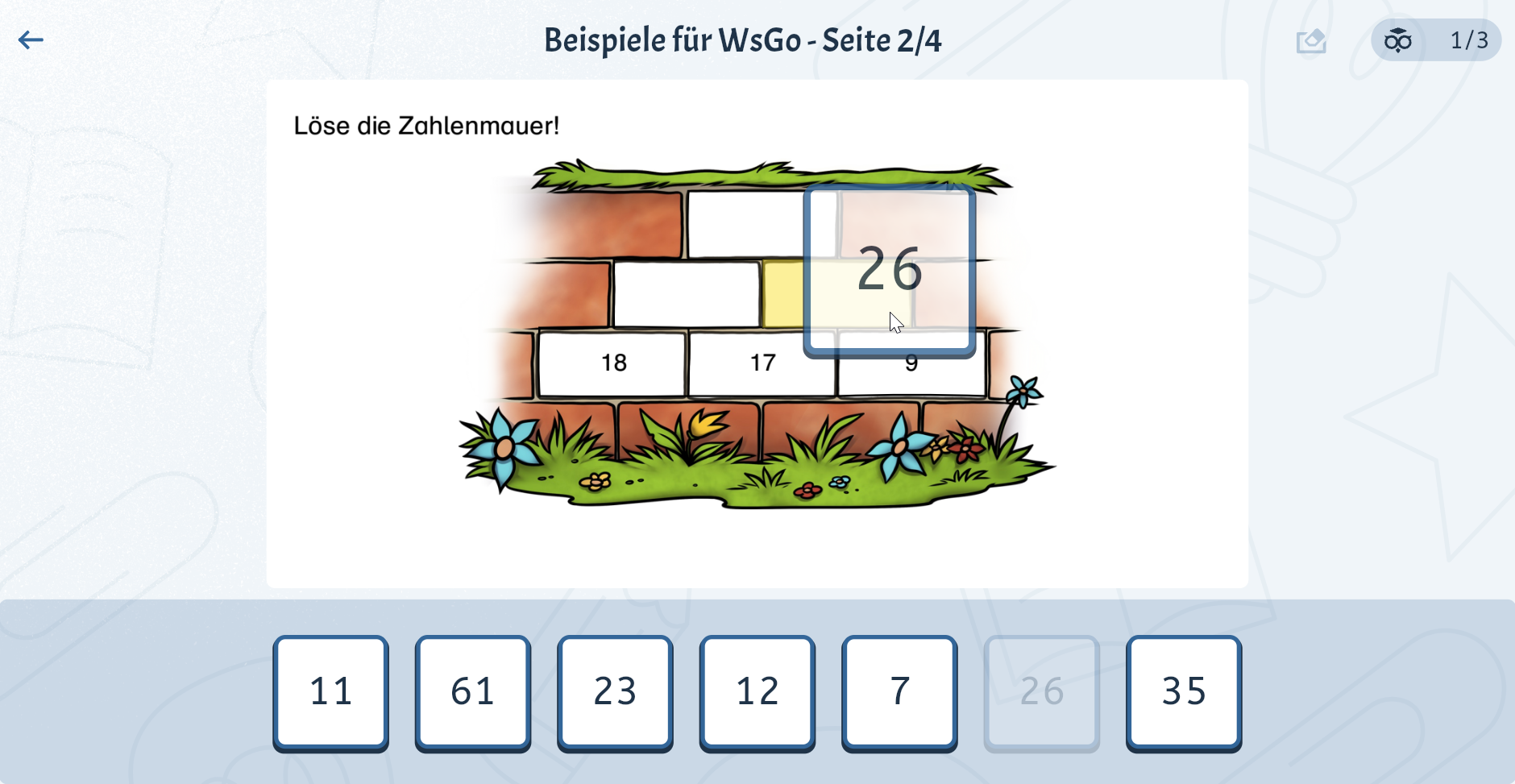
The top left arrow allows the students to go back to the page overview.
Solutions
The students solve a page by dragging solutions from the solution bar below onto the correct position in the page and dropping them there.
By the way, there are many useful settings regarding the solution bar in the app menu on the Worksheet Go! Overview. There are also settings for reward animations, assistance features and other aids.
Solutions on the page can be reordered through drag and drop or put back into the solution bar.
The eraser in the top right allows to reset the whole page.
After all solutions are placed on the page, they are checked.
If the students completely solve a page or use up their last solution attempts, the next page is opened.
The solution attempts for a page are shown in the upper right.
After finishing the last page, the page overview is shown.
Sound and Audio Playback
Those items are invisible areas. Tapping will play the sound or read the speech-text.
For details read the chapters Sound and Audio Playback.
Hyperlinks
Tapping a hyperlink area will show the website in a browser window or play the linked video.
For details read the chapter Hyperlink.
Pages Without Interactive Elements
For pages without interactive elements, e.g. cover sheets, an arrow is shown below to allow the students to proceed.
Feedback Channel
If your student is logged in to the feedback channel and completed a worksheet, the results are sent to you via the feedback channel.
Learn more about the Feedback Channel