Worksheet Crafter User Manual
Create your boardwork directly in Worksheet Crafter. You can use it as interactive presentation in Worksheet Go!, e.g. on a digital whiteboard or with a beamer.
To begin with a new boardwork, directly select it on creation (e.g. via the File menu entry New) or change the worksheet type later in the Page Settings (this usually requires reordering the items on the pages).
In Page Settings you can also change the aspect ratio. Boardwork is optimized for screens with 16:9 aspect ratio. You can change it to 4:3, e.g. because it looks better on your beamer. If your display device has another aspect ratio, just select the setting that is closest. The worksheet will automatically fit into the available space.
Create Boardwork
You edit your boardwork just as any other worksheet by adding items from the Item Bar or content from the Content Browser.
Set Interactions
For boardwork you can additionally use the Interaction Menu to change the interactions for your items.
Initially items do not have interactions. They are configured as "unmovable", "visible at start" and "no visibility toggle".
The Interaction Menu  is located in the upper left of the currently selected boardwork page. A small orange dot at the icons
  informs you about items on the current page with added interactions.
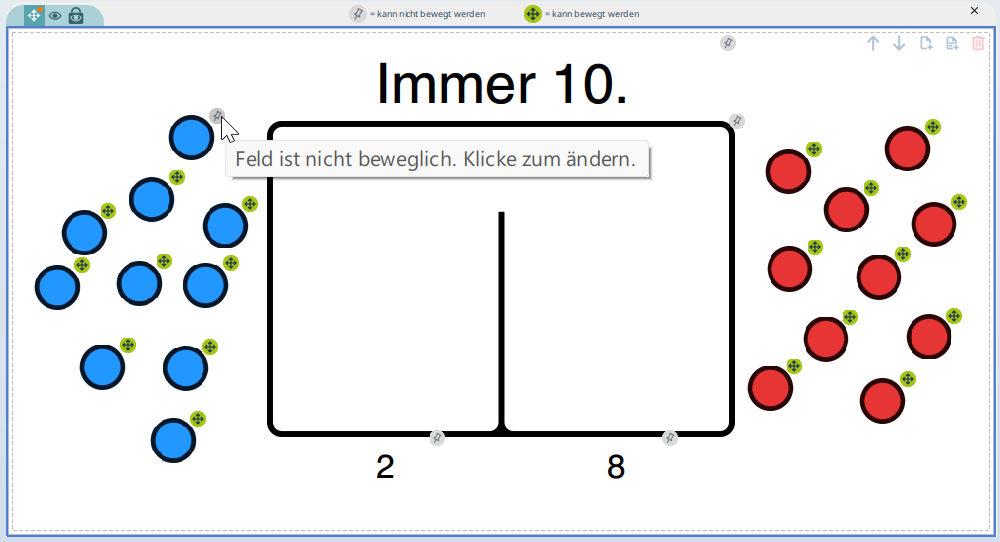
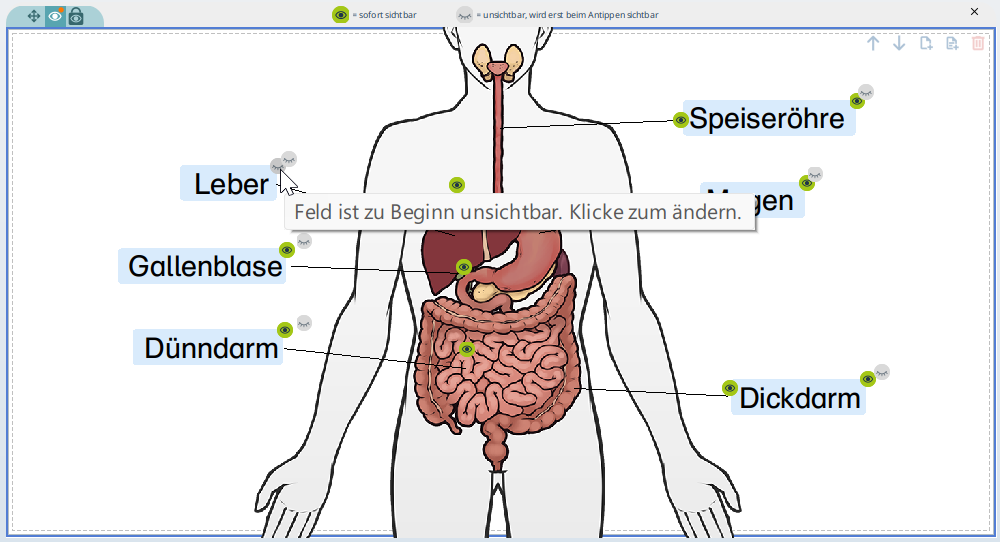
Click one of the icons to switch to the respective edit mode. Now the interaction icon is shown next to each item on the page. Click it to change the interaction for the item.
|
set movable |

|
initial visibility |

|
change visible/invisible |

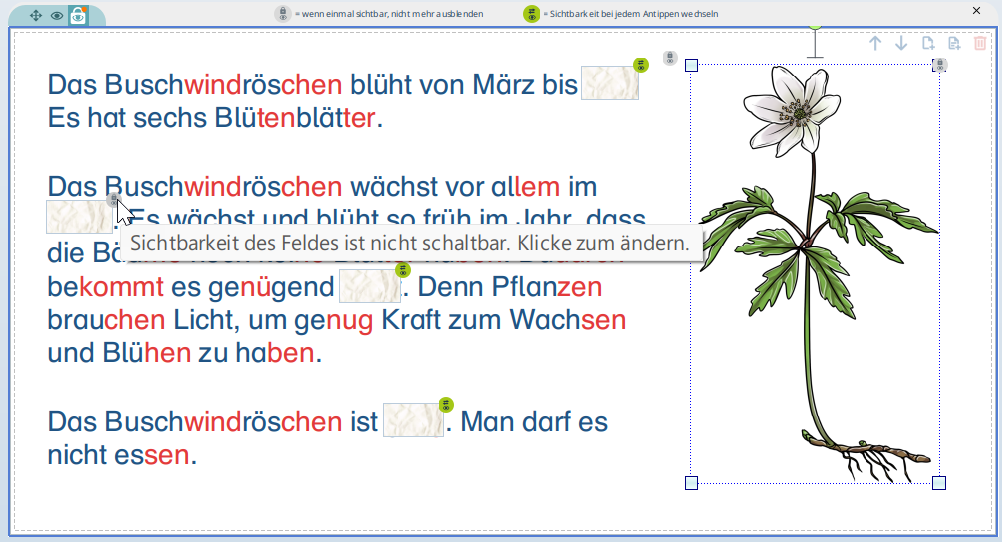
Interactions can be combined.
To edit interactions for multiple items at once, you can group them. Learn more.
Exercise Items
For exercise items solutions are automatically hidden in Worksheet Go! and shown on tapping.
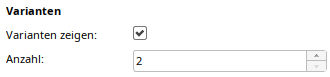
You can also – similar to variant printing – select in the Property Editor to create multiple variants for an exercise item:
Going Forward
•Test your Boardwork in the Preview
•Add it to your Owl Mail Portfolio and receive a download code and QR code
•Open your Boardwork in Worksheet Go! on a digital whiteboard