Worksheet Crafter User Manual
In the Owl Mail Portfolio you can manage all content that you uploaded for Owl Mail or Worksheet Go!.
To upload your worksheet from Worksheet Crafter, click on the button Put in Owl Mail Portfolio in the upper right side bar:

|
Note: For legal reasons the Owl Mail Portfolio is only available for single user licenses.
You can still upload your content with other licenses, but have to remember (or write down) the download codes yourself and can not use the Owl Mail Features. |

To help you always find your uploaded content, as well as manage or delete it, we connect the files during upload with your license email address. When logging in to the Owl Mail Portfolio, you will find all your uploaded content.
Access Owl Mail Portfolio through your web browser:
Owl Mail Portfolio Overview
The app menu is located in the top right:

You can...
•...change the display style.
•...open your account settings (see below)
•...log out.
Below is your Owl Mail content. The title bar provides some useful options:

You can...
•...switch between tile and list view.
•...sort the content by age (newest/oldest first).
•...search your content.
•...filter your content by type (deselect the check boxes to hide a content type).
•...show (or hide) content from the waste bin.
Hover over a tile to show the available actions for the content (in list view they are directly available):
|
|
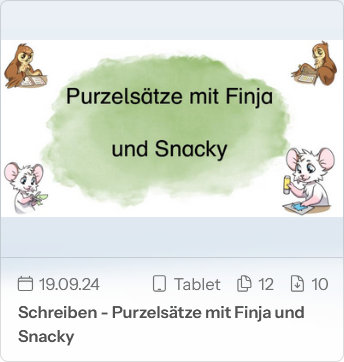
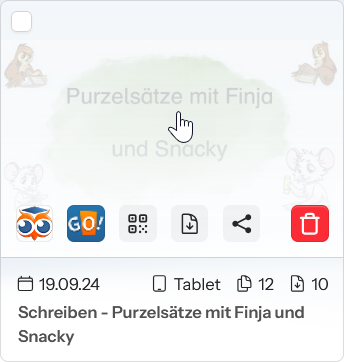
The following actions are available:
•Open Owl Mail Page
•Open in Worksheet Go!
•Show QR code
•Download PDF file
•Share link
•Put content into waste bin
The check box in the top left of the tile allows you to select multiple worksheets at once. This way you can put them into the waste bin in one go.
Account Settings
•Delete Worksheets: Put all content from your Owl Mail Portfolio into the waste bin.
•Delete Account: Deactivates your Owl Mail Portfolio access.
•Connect to Droply (under Connections)
•Change display settings (light/dark/system)